
How to Set Up Discord for Your Gaming Group
When set up properly, Discord for your gaming group takes about 20-30 minutes to get going. Set up a server. Create channels with separate voice and text rooms for each game you play. Assign roles with clear permissions. Add one or two bots for moderation or game lookups. That foundation keeps dozens of players organized without the chaos that kills most gaming Discords within a month.
Here’s exactly how to do it right, including what most setup guides skip entirely.
Why Most Gaming Discord Servers Fall Apart Early
Before touching any settings, it’s worth understanding the failure pattern. When specialists set up gaming servers without a plan, they typically create too many channels upfront. Fifteen channels for a ten-person group feels thorough. It actually fragments every conversation and makes the server feel dead, because nobody’s sure where to post anything.
The typical failure point is channel sprawl paired with zero role clarity. Players post game clips in the wrong channel, voice rooms stay empty because nobody knows which one to use, and the whole thing quietly dies.
Start lean. You can always add channels; removing them once people have used them creates friction.
Step 1: Setup Your Server and Choose The Right Template
Launch Discord and create a new server by clicking the plus icon in the left sidebar. Discord will provide templates with a Gaming preset. It’s a perfectly good place to start, though you’ll want to dismantle every default channel it creates rather than keep all of them.
Use your group name, not the title of the game for your server. A name like “The Friday Night Squad” or “Weekend Warriors” is better suited to age than “Fortnite Gang,” which isn’t going to sound good when your group inevitably picks up a second game.
Under server settings, set your region to the closest data center to your majority player base. For US gaming groups, this usually means US East or US West. Latency in voice channels is noticeably affected by this setting.
Step 2: Build a Channel Structure That Makes Sense
| Channel Type | Name Suggestion | Purpose |
|---|---|---|
| Text | #welcome-rules | First stop for new members |
| Text | #general | Off-topic conversation |
| Text | #game-specific (e.g. #valorant-chat) | Per-game discussion |
| Text | #lfg | Looking-for-group callouts |
| Text | #clips-highlights | Video and screenshot sharing |
| Voice | General Hangout | Casual conversation |
| Voice | Game Room 1 | Active session room |
| Voice | Game Room 2 | Overflow for second group |
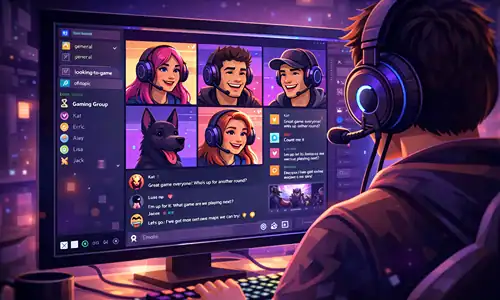
Channel in Discord are not visually grouped so use the category feature. An “Info” category for rules and announcements, a “Chat” category for text rooms and a “Gaming” category for voice channels keeps navigation tidy.
One clear rule worth enforcing: one voice channel per active game session, not per game title. If your group has three games in one night, two game rooms can do that much better than six named rooms each with a person.
Step 3: Configure Roles Before Inviting Anyone
Roles control what members can see and do. Get this wrong and you’ll spend weeks cleaning up permission conflicts.
The Three-Tier Role Structure
| Role | Permissions | Who Gets It |
|---|---|---|
| Admin | Full server permissions | One or two trusted people only |
| Moderator | Manage messages, kick, mute in voice | Trusted regular members |
| Member | Standard read and post access | Everyone else |
Assign roles from Server Settings > Roles. Set each role’s color so members can immediately see who’s who in chat and voice. Color-coded roles are a small detail that makes a surprisingly big difference in community feel.
The mistake that most guides forget to mention: do not check ON “Administrator” permission for Moderator roles It may sound like a paradox, but moderators with full admin access can remove channels in error, alter the server name or add bots. Provide them only what they want and nothing further.
Step 4: Add Two Bots, No More
More bots mean more permission conflicts, more bot spam in channels, and slower server response. For a gaming group, two bots cover everything.
Recommended Bots for a Gaming Discord
| Bot | What It Does | Why It’s Worth It |
|---|---|---|
| Carl-bot | Welcome messages, reaction roles, moderation logging | Auto-assigns Member role on join |
| Discord AutoMod | Built-in spam filtering | No third-party access needed |
| Game-specific (e.g., BotVi) | Valorant or Apex Legends stat tracking | Only add if your group plays a supported title |
Set Carl-bot to automatically assign the “Member” role when someone joins. This keeps your server clean without manual work every time someone new appears. Discord’s built-in AutoMod lives under Server Settings > Safety Setup, enable it before your server grows past 15 people.
If you play games that reward in-game progress, you might also want to track codes and bonuses alongside stats. The Game Codes Finder is a handy bookmark for that, especially when your group is grinding the same title together.
Step 5: Set Your Verification Level and Invite Link
Under Server Settings > Safety Setup, set verification level to “Low” for a private group of friends. This requires a verified email address but doesn’t gate-keep new members with phone verification, which is appropriate for a trusted circle.
Create your invite link from the #general channel: right-click the channel, select “Invite People,” and set the link to never expire. Share this link instead of temporary ones so you always have one working invite to give out.
Expert Pro Tips for Gaming Servers
From testing this across multiple gaming community setups, these details make a real difference:
| Tip | Why It Works |
|---|---|
| Pin the session schedule in #general weekly | Cuts down “when are we playing?” messages significantly |
| Use a structured #lfg format: Game / Slots / Time | Freeform LFG posts get ignored; structure gets responses |
| Tell new members to mute most channels on arrival | Discord’s default notifications are too aggressive for active servers |
| Hold off on a #memes channel until 25-plus active members | It consistently becomes the most active channel and derails coordination |
FAQ
How do I create a Discord server for a gaming group?
Click the plus icon in Discord’s left sidebar, select “Create My Own,” choose “For me and my friends,” and name your server. The whole process takes under two minutes, the real work is configuring channels and roles afterward.
What channels should a gaming Discord server have?
Start with five to seven channels: a rules channel, general chat, one or two game-specific text channels, an LFG channel, and two voice rooms. Add more as your group actually needs them, not in anticipation of needing them.
How do I set up roles on Discord for gaming?
Go to Server Settings > Roles, create Admin, Moderator, and Member tiers, assign permissions to each, and then manually assign roles to members. Use Carl-bot to auto-assign the Member role on join.
What are the best Discord bots for a gaming server?
Carl-bot for moderation and welcome messages, plus Discord’s built-in AutoMod for spam filtering. Add a game-specific stat bot only if your group plays a title that supports one.
How do I invite friends to my Discord gaming server?
Right-click any text channel, click “Invite People,” set the link to never expire, and share it. Avoid generating multiple invite links, one permanent link is easier to manage.
Can I use Discord for free with my gaming group?
Yes, completely. The free tier supports unlimited members, channels, text chat, and voice chat. Discord Nitro and server boosts add perks like better audio quality and custom emojis, but nothing in this setup guide requires them.
Your Next Steps Right Now
| Step | Action |
|---|---|
| 1 | Create the server and strip out any template channels you won’t actually use |
| 2 | Build your role structure before sending a single invite |
| 3 | Install Carl-bot and configure the member auto-role |
| 4 | Enable Discord AutoMod under Safety Setup |
| 5 | Create one permanent invite link and save it somewhere accessible |
Once your group has been active for a few weeks, revisit your channel list. Delete anything that has had zero posts. Add channels only when there’s a real, repeated need, not a hypothetical one.
If your group plays Roblox on the side, the free Robux guide is worth passing around in your #general channel; it’s the kind of thing people actually thank you for sharing.
Share this article

Ryan has been playing Roblox since 2017. He started keeping a personal spreadsheet of codes that actually worked after getting burned one too many times by lists that hadn't been updated in weeks. That spreadsheet turned into BossGamerz. He still plays Blox Fruits and King Legacy regularly — not to write about them, but because he genuinely enjoys them. He handles what gets published and what doesn't. If a code list goes up on this site, he's either tested it himself or someone on the team has done it in front of him.
View all articles