How to Link Roblox to Discord on Desktop and Mobile
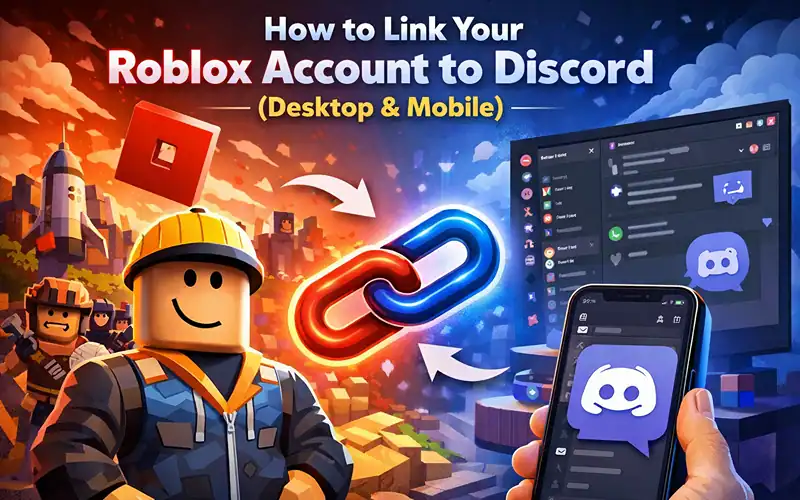
Discord has a native Connections feature to link your Roblox account with the service in just under two minutes. Open up User settings, Connections and click on the Roblox icon and allow your account in a tab beside. Once linked, your username will be displayed on your Discord profile, while your friends will see what games you’re playing in real-time.
That’s the short version. But so much can go wrong, the wrong account gets linked, the Roblox icon doesn’t show up, or you have to get server-specific verified through a bot like Bloxlink. This guide covers all of it.
Do You Need Native Discord Linking or Bloxlink?
Now before we dive into the steps, it is helpful to mention that there are another two entirely different approaches of linking together Roblox and Discord. They serve different purposes.
| Feature | Native Discord Link | Bloxlink Bot |
|---|---|---|
| Purpose | Shows Roblox on your profile | Verifies you in a specific server |
| Where it works | Your personal Discord profile | A single Discord server |
| Grants roles | No | Yes, based on Roblox rank |
| Requires setup | No (just authorize) | Yes (server admin must add bot) |
| Age requirement | 13+ | 13+ |
| Can link multiple accounts | No | Sometimes, depending on server |
The default Discord link should do the trick if you want your Roblox username on your profile that only has your friends view. If you are being asked to verify your Roblox account on your Discord server for a role or access to certain channels, that is Bloxlink.
Linking Roblox to Discord (Desktop)
Step 1: Open User Settings
In the bottom-left corner of Discord, click the gear icon next to your username. This accesses User Settings, not Server Settings.
Step 2: Navigate to Connections
In the left sidebar, scroll and look for “Connections.” Click it. You’ll see a row of possible platform accounts to link.
Step 3: Search and Press the Roblox Icon
Roblox should be visible in the icon grid. If you do not see it right away, click on the little arrow to the right that says “view more”. Discord hides some platforms by default. Once you notice the Roblox logo, click it.
Step 4: Sign into Roblox and Grant Permission
A browser window opens. If you are logged into Roblox, you’ll get an authorization page. Click “Continue.” To start, read the news as a non-logged in user. This is where most people mistakenly link the wrong account. So, double-check you are signed into the correct Roblox account in your browser before clicking that Roblox icon in Discord.
Step 5: Confirm the Connection
Head back to Discord. Now, on the panel under Connections should be your Roblox username with a green checkmark next to it. You decide whether to show this on your public profile.
Common pitfall here: if you’ve got multiple browser profiles or incognito windows up and running, Discord will try to take whatever Roblox session is the most active. Make sure to close all other tabs before doing the authorization process.
How to Connect Roblox to Discord on Mobile
There is a slightly different process on mobile. If you’re on the Discord app, launch it and hit your profile picture in the bottom-right corner, then tap “Connections.” Choose the (+) in the upper right. With the list pulled up, scroll down to find Roblox and tap it. The app will then launch your mobile browser. Log in if necessary, and click “Continue.” Head back to Discord: the link will be verified within a few seconds.
One thing that mobile users always seem to overlook: if you tap on “Continue” but nothing happens in Discord, close the browser and reopen Discord. Under Authorization, the app occasionally needs to be manually refreshed to recognize the authorization.
How to Verify with Bloxlink in a Discord Server
Bloxlink is the most widely used Roblox verification bot. Here’s how it works from the user side once a server has it installed.
Step 1: Type /verify in any channel of the server that uses Bloxlink. The bot sends you a DM with a verification link.
Step 2: Open the link. It takes you to Bloxlink’s website where you sign into Roblox.
Step 3: Bloxlink adds a short code to your Roblox profile bio temporarily to confirm ownership. Follow the prompt, then click Verify.
Step 4: Return to Discord. Bloxlink assigns roles based on your Roblox username, group rank, or account age, depending on how that server’s admin configured it.
If you’re a server admin wanting to add Bloxlink yourself, visit blox.link, add the bot to your server, and use the dashboard to configure which Roblox groups and ranks map to which Discord roles. If your server also runs game-specific events, keeping a game codes finder bookmarked saves a lot of time when members ask about active codes.
Pro Tips Worth Knowing
From testing this across multiple setups, here’s what catches people off guard:
| Situation | What to Know |
|---|---|
| Unlinking your account | Go to Connections, hover over the Roblox entry, click the X. Activity stops showing immediately. You can re-link any time. |
| Activity not showing for friends | Roblox activity only appears when launched through the desktop app, not the browser version. |
| Connections tab missing | The 13+ age restriction on Discord hides this tab entirely for younger registered accounts. |
| Bloxlink vs profile link confusion | They’re fully independent. Verifying in one server doesn’t change your profile connection. |
| Wrong account linked | Unlink immediately, log into the correct Roblox account in your browser, then re-authorize. There’s no shortcut here. |
FAQ
Why isn’t the Roblox icon appearing in my Discord connections? On the Connections page, click on the “view more” arrow. Discord hides some platforms. If it still doesn’t show up, restart Discord or look at whether your Discord account has the Connections feature enabled. Accounts signed up as under 13 may not see it at all.
How does Bloxlink work and what is it? Bloxlink is a third-party bot that server administrators install to verify the Roblox identities of server members. It assigns particular Discord roles, depending on your Roblox username, group rank or others. You get access to it by using /verify in a supported server.
Is it possible to disconnect Roblox from Discord? Yes. In User Settings, Connections, hover over your Roblox account and click the X icon. The link is gone immediately, although you can reconnect if you wish.
Why did they hook my Discord to the incorrect Roblox account? When you authorize, Discord links whatever Roblox account is currently logged into your browser. Unlink the wrong account, sign into the right Roblox account in your browser, and then click to re-authorize with Discord Connections.
Is my game activity on Roblox public for everyone if I link my discord? Roblox username and activity visibility is enabled for friends on Discord by default. Under Connections, you can flip display on profile to determine who sees your connection.
How do I verify my Roblox account in a specific Discord server? Type /verify in the server’s chat. If Bloxlink or a similar bot is active, it’ll walk you through their verification flow. Each server handles this differently, so check the server’s rules or info channel for specific instructions.
Your Next Steps
If you have done everything right up here then your Roblox and Discord accounts should now be connected! Check that your Roblox username now appears within the Connections section of your Discord profile. Launch Roblox through the desktop app, then ask a buddy on Discord if they can see your activity status.
If you manage a Discord server, look into setting up Bloxlink for automated role assignment, it’s free for most use cases and takes about 15 minutes to configure properly. Their official documentation at blox.link walks through every setting.
For related reading, the Anime Defenders tier list is worth a look if your server is built around that game, since Bloxlink role setups often tie directly into which units and ranks players hold.
Share this article

Ryan has been playing Roblox since 2017. He started keeping a personal spreadsheet of codes that actually worked after getting burned one too many times by lists that hadn't been updated in weeks. That spreadsheet turned into BossGamerz. He still plays Blox Fruits and King Legacy regularly — not to write about them, but because he genuinely enjoys them. He handles what gets published and what doesn't. If a code list goes up on this site, he's either tested it himself or someone on the team has done it in front of him.
View all articles